
Computers and laptops become slower over time, especially when storage devices start aging. Slow boot times, lagging applications, delayed file transfers, and freezing systems are common signs that your device may need a storage upgrade.
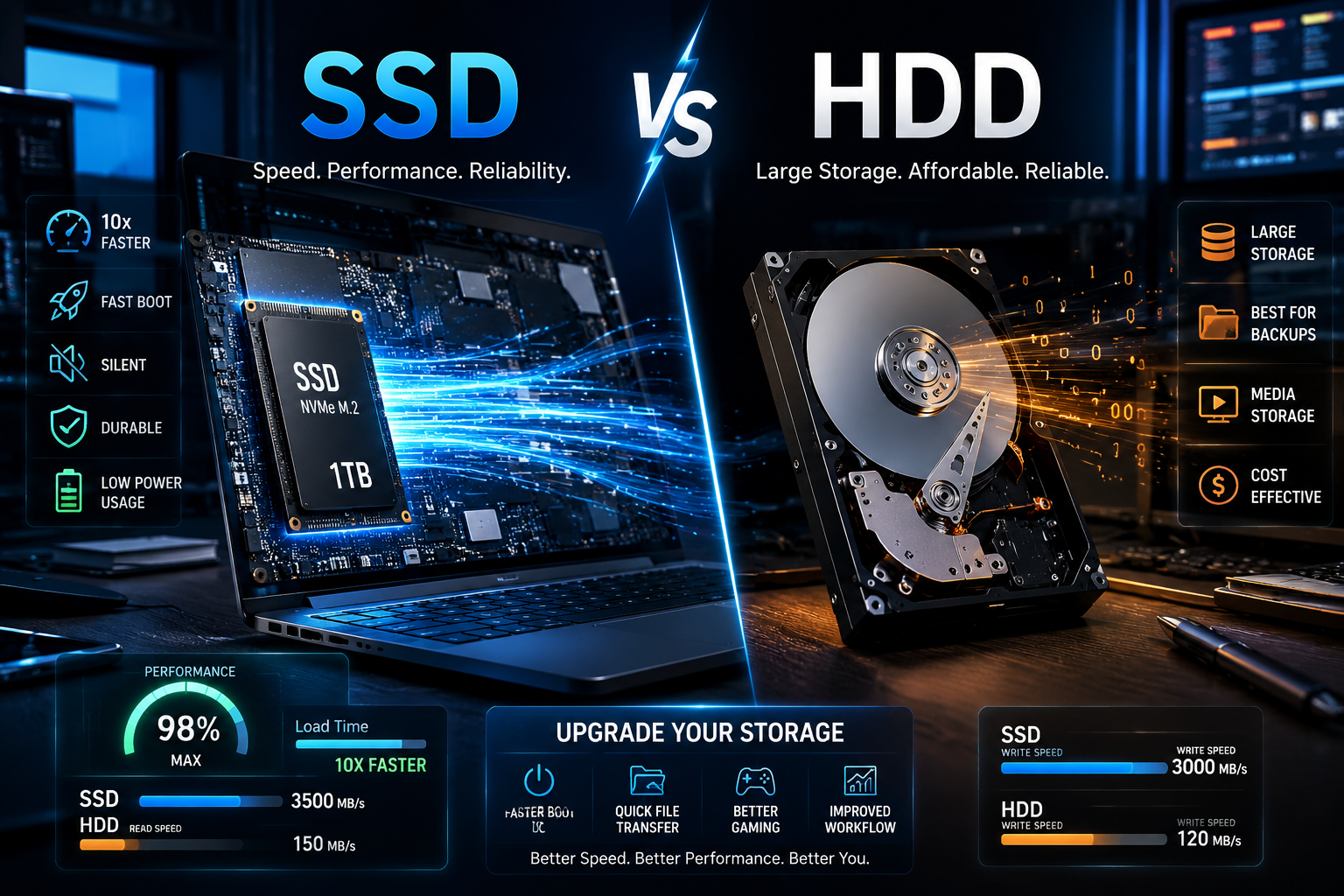
When upgrading storage, most users compare SSD vs HDD Upgrade options to decide which one offers better performance, reliability, and value for money. Both storage devices serve different purposes, and choosing the right one depends on your usage, budget, and performance needs.
In this guide, we’ll explain the differences between SSDs and HDDs, their advantages, and which storage upgrade is best for your laptop or desktop PC.
What Is an HDD?
An HDD (Hard Disk Drive) is a traditional storage device that uses spinning magnetic disks to store data. It has been used in computers for many years because of its affordability and large storage capacity.
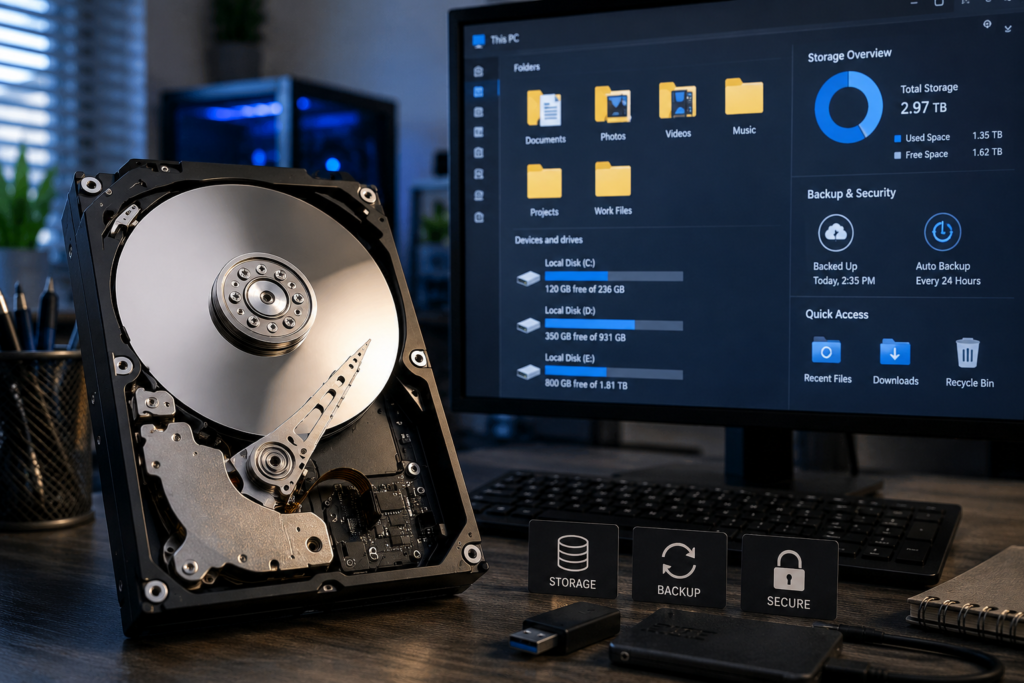
HDDs are commonly available in capacities such as:
- 500GB
- 1TB
- 2TB
- 4TB and higher
These drives are widely used for:
- File storage
- Backup systems
- Movies and media storage
- Office data
- Budget PCs
Because HDDs contain moving mechanical parts, they are slower compared to modern SSDs.
What Is an SSD?
An SSD (Solid State Drive) is a modern storage device that uses flash memory instead of spinning disks. Since SSDs have no moving parts, they deliver much faster performance and better reliability.
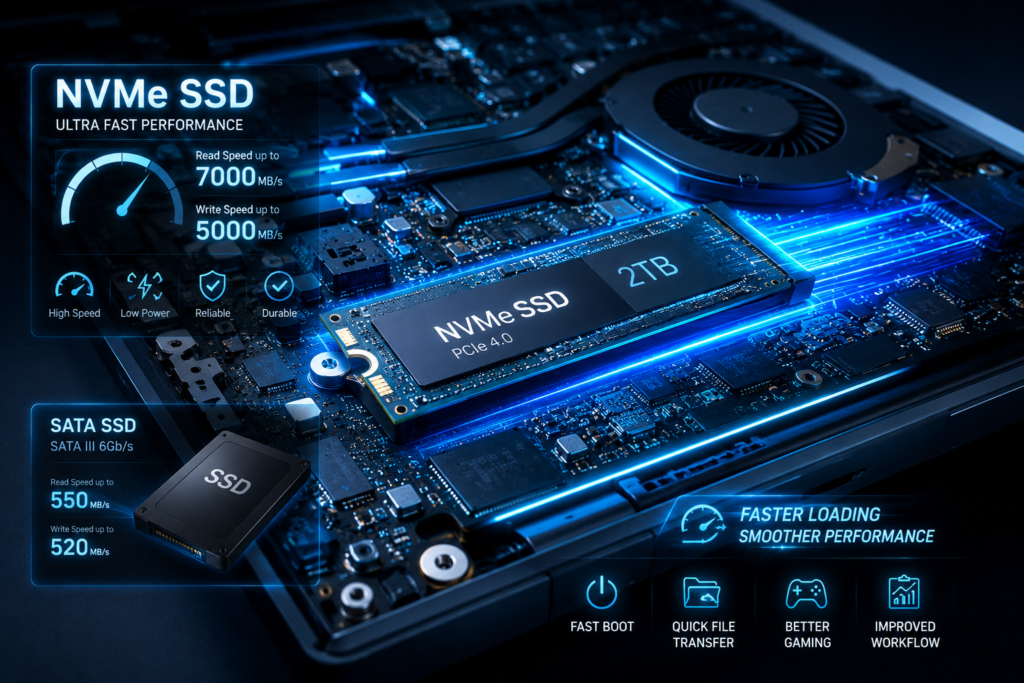
Popular SSD types include:
- SATA SSD
- NVMe SSD
- M.2 SSD
SSDs are becoming increasingly popular because they improve overall system speed significantly. Whether you use a laptop for office work, gaming, editing, or multitasking, upgrading to an SSD can make your system feel almost new again.
SSD vs HDD Upgrade: Key Differences
1. Speed & Performance
SSD
SSDs offer extremely fast boot times and quicker software loading. Windows can start within seconds, and applications respond much faster.
HDD
HDDs are slower because they rely on spinning disks and mechanical read/write heads.
Winner:
SSD for superior speed and performance.
2. Storage Capacity
SSD
SSDs are available in multiple storage options but are generally more expensive for higher capacities.
HDD
HDDs offer larger storage at a lower cost, making them ideal for storing massive amounts of data.
Winner:
HDD for affordable large storage.
3. Durability
SSD
Since SSDs have no moving parts, they are more resistant to physical shocks and accidental drops.
HDD
HDDs are more fragile because internal mechanical parts can get damaged easily.
Winner:
SSD for durability and reliability.
4. Power Consumption
SSD
SSDs consume less power, which helps improve laptop battery life.
HDD
HDDs require more power due to moving internal components.
Winner:
SSD for energy efficiency.
5. Noise & Heat
SSD
SSDs work silently and produce less heat.
HDD
HDDs create slight vibration, noise, and additional heat during operation.
Winner:
SSD for quieter performance.
6. Gaming & Editing Performance
SSD
Games load faster, textures render quicker, and editing software performs more smoothly on SSDs.
HDD
HDDs can still run games and editing applications but with longer loading times.
Winner:
SSD for gaming and creative work.
7. Price Comparison
SSD
SSDs are more expensive per GB of storage.
HDD
HDDs provide budget-friendly storage solutions.
Winner:
HDD for cost-effective storage.
Advantages of SSD Upgrade
Upgrading to an SSD offers major performance improvements.
Faster Boot Speed
Your laptop or PC starts within seconds instead of minutes.
Improved System Performance
Applications open quickly and multitasking becomes smoother.
Faster File Transfers
Large files move much faster compared to HDD storage.
Better Gaming Experience
Reduced loading screens improve gameplay performance.
Improved Laptop Battery Life
Lower power consumption helps extend battery backup.
Better Reliability
No moving parts mean lower chances of mechanical failure.
For users looking to improve the speed of older systems, SSD installation is often the best upgrade option available.
Advantages of HDD Upgrade
Although SSDs are faster, HDDs still have important advantages.
Affordable Large Storage
You can get massive storage at a lower price.
Ideal for Backups
Perfect for storing photos, videos, and archived data.
Better for Media Storage
Excellent for movies, music collections, and large files.
Budget-Friendly Solution
Good option for users needing storage without high performance requirements.
SSD vs HDD Upgrade for Laptops
For laptops, SSDs are generally the better choice.
Why SSDs Are Better for Laptops
- Faster startup and shutdown
- Lightweight design
- Lower power usage
- Better shock resistance
- Improved battery life
- Faster software performance
If your laptop feels slow, upgrading from HDD to SSD can dramatically improve daily performance.
Many users visiting a Computer repair service in Zirakpur choose SSD upgrades because they provide noticeable speed improvements without buying a new laptop.
SSD vs HDD Upgrade for Desktop PCs
Desktop users often combine both SSD and HDD storage for maximum efficiency.
Recommended Setup
SSD for:
- Operating system
- Games
- Editing software
- Frequently used applications
HDD for:
- Movies
- Backups
- Downloads
- Large file storage
This hybrid setup gives you both speed and large storage capacity.
Which Upgrade Is Better for Gaming?
Modern games are becoming larger and more demanding.
SSD Benefits for Gaming
- Faster game loading
- Reduced texture pop-ins
- Smoother open-world gaming
- Better overall responsiveness
Although SSDs do not directly increase FPS significantly, they greatly improve the gaming experience.
Which Upgrade Is Better for Office Work?
For office users, SSDs improve productivity substantially.
SSD Benefits for Office Use
- Faster Microsoft Office performance
- Quick browser loading
- Smooth multitasking
- Faster file opening
- Reduced lag during meetings and presentations
Businesses using professional IT services in Zirakpur often upgrade office computers with SSDs to improve employee productivity and reduce downtime.
Signs Your Laptop or PC Needs a Storage Upgrade
You may need a storage upgrade if you notice:
- Slow boot times
- Frequent system freezing
- Lagging software
- Low storage warnings
- Delayed file transfers
- Slow Windows updates
- Poor gaming performance
These signs usually indicate that your current drive is outdated or struggling to keep up with modern workloads.
Factors to Consider Before Upgrading
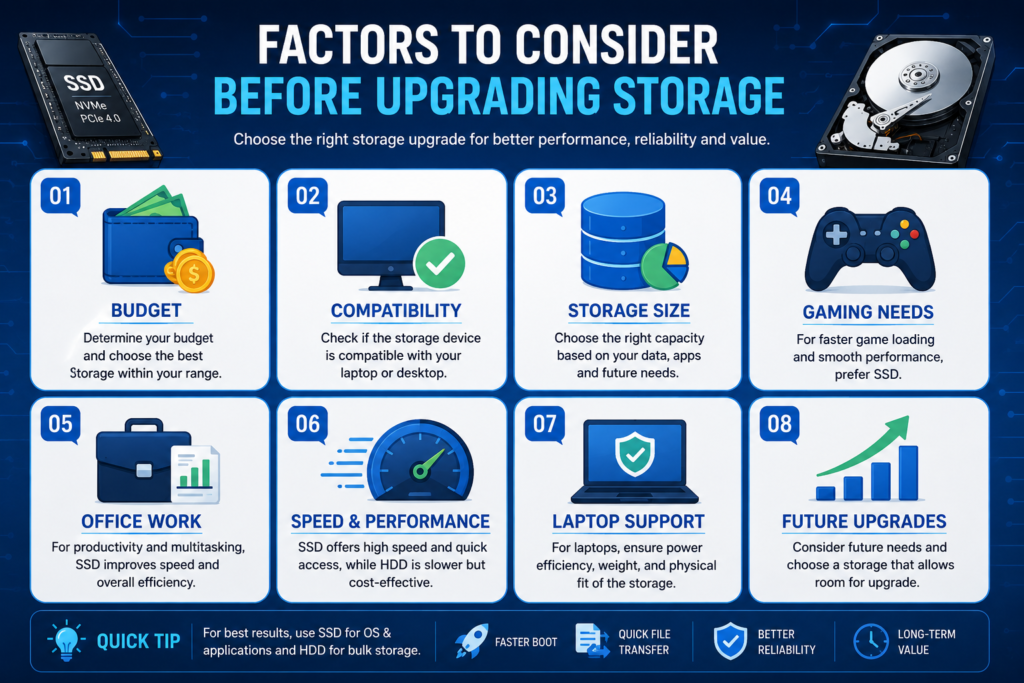
Before choosing between SSD and HDD, consider these factors:
Budget
Determine how much you want to spend.
Storage Needs
Gamers and content creators may need larger storage.
Device Compatibility
Check whether your laptop or motherboard supports SATA or NVMe SSDs.
Usage Type
Choose SSD for speed or HDD for storage-focused use.
Future Upgrades
Consider future expansion possibilities.
Should You Upgrade from HDD to SSD?
For most users, upgrading from HDD to SSD is one of the best improvements you can make to a computer.
Benefits include:
- Faster performance
- Better multitasking
- Reduced lag
- Improved reliability
- Better user experience
Instead of buying a completely new laptop, many users can extend the life of older systems simply by installing an SSD.
Professional SSD Installation Benefits
Professional installation ensures safe and proper setup.
Benefits Include:
- Secure data migration
- Windows installation support
- Proper compatibility checks
- Faster installation process
- Reduced risk of data loss
- Optimized system configuration
A professional technician can also help select the right SSD type based on your budget and device compatibility.
Conclusion
When comparing SSD vs HDD Upgrade, the best option depends on your priorities.
Choose SSD If You Want:
- Faster performance
- Better gaming experience
- Quick boot times
- Smooth multitasking
- Improved laptop efficiency
Choose HDD If You Want:
- Affordable large storage
- Backup solutions
- Media storage
- Budget-friendly upgrades
For many users, combining SSD and HDD storage provides the perfect balance between speed and storage capacity.
If your laptop or desktop is running slow, upgrading your storage can dramatically improve performance without replacing the entire system.
Related Blogs
Professional Laptop Repair Services| Benefits of Installing CCTV Cameras| Refurbished Laptop| CCTV installation cost| CCTV Installation Company| Printer common issues & solutions|Printer maintenance tips|Laptop Overheating|Wired vs wireless CCTV cameras|Laptop vs Desktop Repairs