

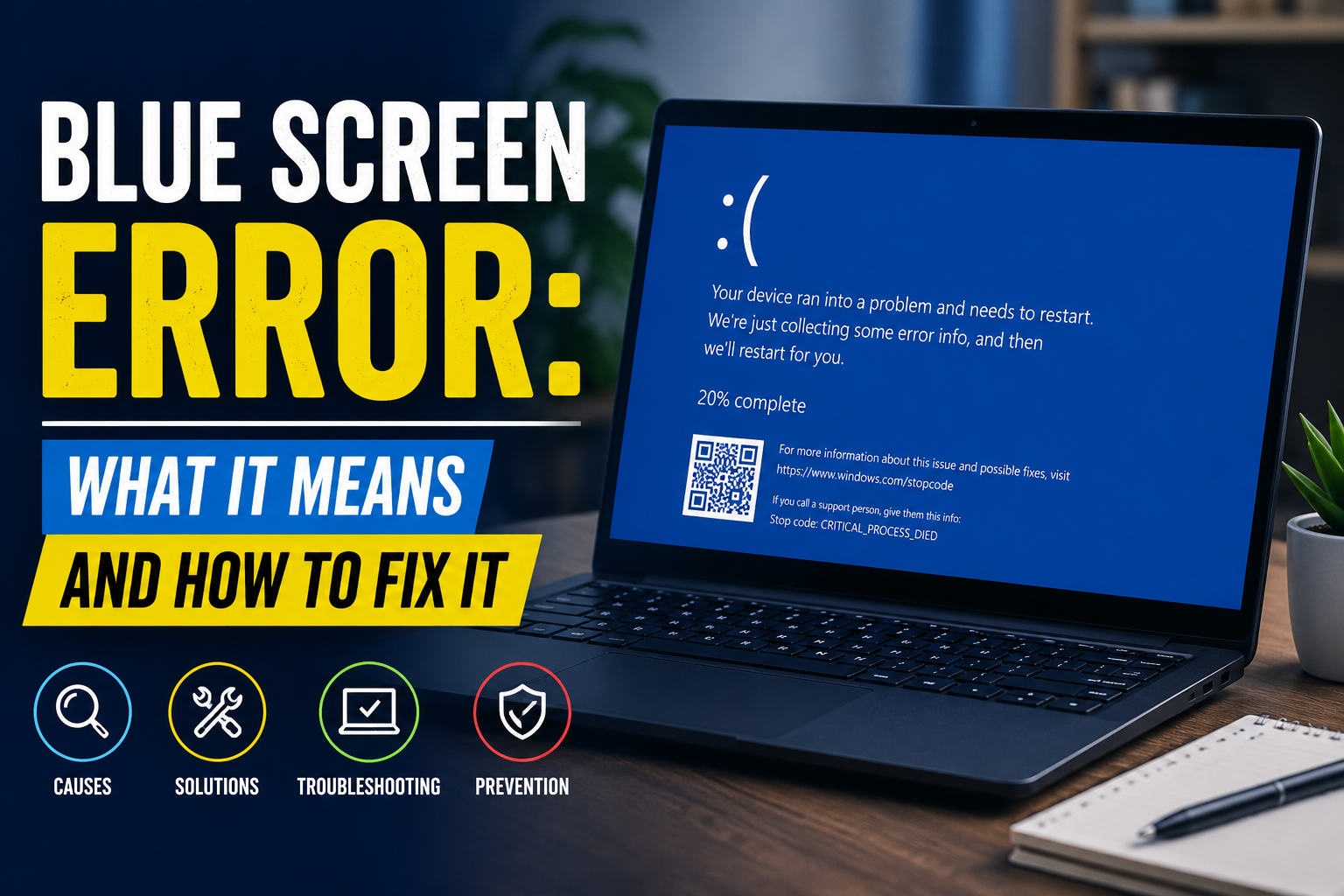
A Blue Screen Error, commonly known as the Blue Screen of Death (BSOD), is a critical Windows error that forces your computer to stop working to prevent further damage. It usually occurs due to faulty hardware, corrupted system files, incompatible drivers, overheating, memory issues, or storage failures. While a single Blue Screen Error may not always indicate a serious problem, repeated crashes often point to underlying hardware or software issues that require diagnosis. Most BSOD errors can be resolved by updating drivers, repairing Windows system files, checking RAM and storage health, or replacing faulty components. If the problem persists, professional diagnosis can help identify the exact cause and prevent data loss.
Key Takeaways
- A Blue Screen Error is Windows’ built-in safety mechanism.
- BSOD protects your computer from severe system damage.
- Faulty drivers and RAM are among the most common causes.
- Overheating and SSD/HDD failures can also trigger crashes.
- Error codes help identify the root cause.
- Many BSOD issues can be fixed without replacing the computer.
- Regular maintenance reduces the risk of recurring crashes.
- Ignoring repeated BSODs may lead to data loss or hardware damage.
- Professional diagnostics are recommended for persistent issues.
- Preventive maintenance can significantly improve system stability.
Introduction
Nothing is more frustrating than seeing your computer suddenly freeze, display a blue screen with an error message, and restart unexpectedly. Whether you’re working on an important office project, attending an online class, gaming, or editing photos, a Blue Screen Error can interrupt your work and even result in unsaved data being lost.
The Blue Screen of Death (BSOD) has been part of Microsoft Windows for decades. Although modern versions of Windows display friendlier error messages and QR codes, the purpose remains the same: to stop the system before a critical problem causes further damage.
Many users assume that a BSOD means their computer is permanently damaged. Fortunately, that’s not always the case. In many situations, the issue can be resolved through software troubleshooting, driver updates, or hardware diagnostics. However, recurring Blue Screen Errors should never be ignored because they often indicate deeper problems with memory, storage devices, drivers, or other hardware components.
In this comprehensive guide, you’ll learn what a Blue Screen Error means, why it occurs, how to identify the cause, practical troubleshooting methods, and when it’s time to seek professional assistance.
What Is a Blue Screen Error?
A Blue Screen Error, officially called a Stop Error, is a protective mechanism built into the Windows operating system. When Windows detects a critical issue that could compromise system stability or corrupt data, it immediately halts all operations and displays a blue screen containing diagnostic information.
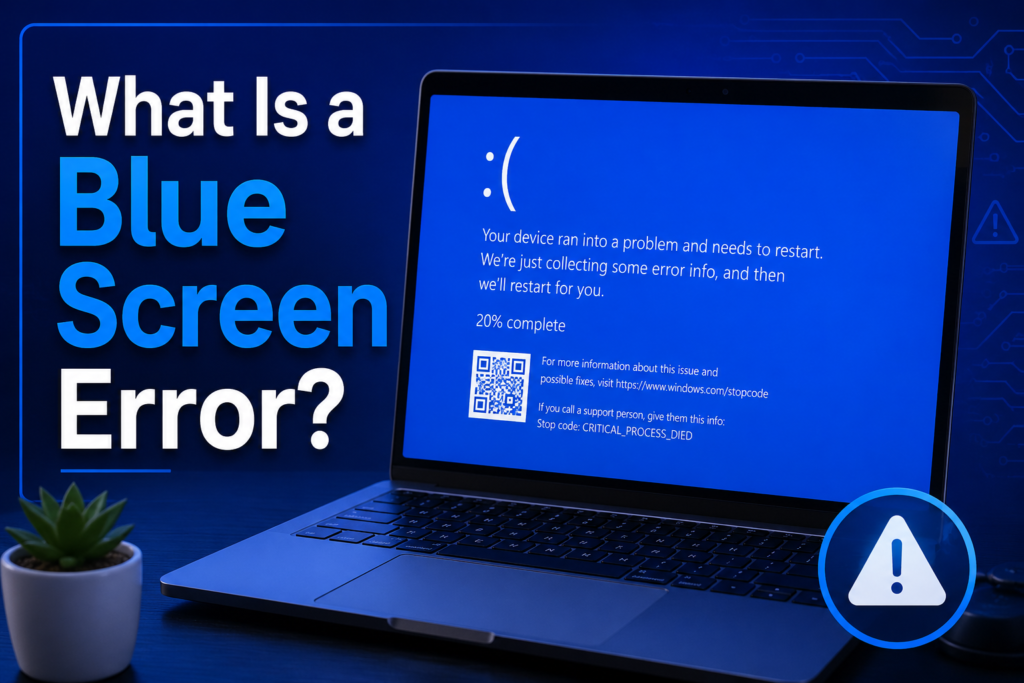
Instead of allowing the computer to continue operating in an unstable state, Windows intentionally shuts down the system to prevent additional damage.
The blue screen typically displays:
- A sad face icon (in newer Windows versions)
- A brief explanation that the PC encountered a problem
- A Stop Code (error code)
- A QR code linking to Microsoft’s troubleshooting resources
- Information about collecting diagnostic data before restarting
This process may seem alarming, but it is actually designed to protect your computer and your data.
Why Does Windows Show a Blue Screen?
Windows constantly monitors essential system components, including memory, storage devices, processors, drivers, and hardware communication. If it detects an issue that could lead to corruption or instability, it immediately stops the operating system.
Common reasons include:
- Corrupted system memory
- Faulty hardware components
- Incompatible device drivers
- Critical Windows file corruption
- Overheating
- Storage device failures
- BIOS configuration issues
- Malware affecting system files
By stopping the system, Windows reduces the likelihood of permanent file corruption or hardware damage.
Common Causes of Blue Screen Errors
Understanding the underlying cause is the first step toward resolving a BSOD. Below are the most frequent reasons.
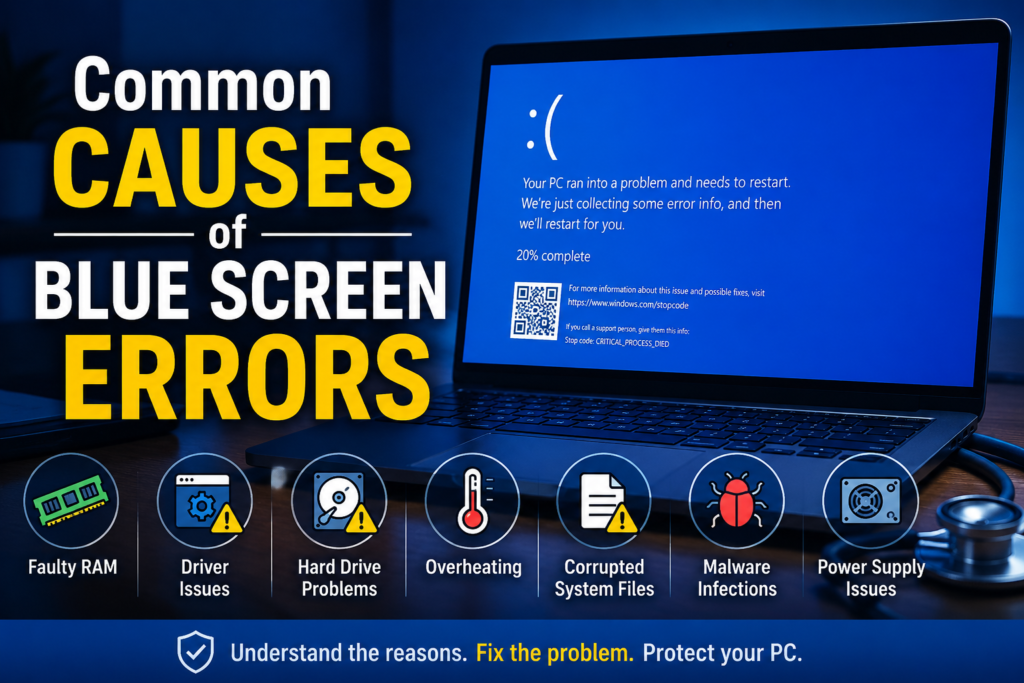
1. Faulty RAM
Random Access Memory (RAM) temporarily stores data that your computer actively uses. If one or more RAM modules become defective, Windows may encounter invalid memory operations, resulting in a Blue Screen Error.
Common symptoms include:
- Random crashes
- Frequent restarts
- Applications closing unexpectedly
- Installation failures
- Memory-related stop codes
2. Corrupted Device Drivers
Drivers allow Windows to communicate with hardware such as graphics cards, printers, storage devices, and network adapters.
An outdated, incompatible, or corrupted driver can trigger a system crash.
Common driver-related causes include:
- Recently installed hardware
- Faulty Windows updates
- Third-party driver software
- Graphics driver failures
3. SSD or Hard Drive Problems
Storage devices are responsible for loading Windows and storing files. Bad sectors, file system corruption, or failing SSDs can prevent Windows from accessing critical files, resulting in repeated BSODs.
Signs of storage failure include:
- Slow boot times
- Clicking sounds (HDD)
- Frequent file corruption
- System freezing
- Boot failures
4. Overheating
Modern CPUs and GPUs include thermal protection features. If temperatures exceed safe limits due to dust buildup, failing cooling fans, or poor airflow, Windows may shut down to prevent hardware damage.
Overheating often occurs because of:
- Dust-clogged cooling vents
- Old thermal paste
- Faulty cooling fans
- Intensive gaming
- Poor ventilation
5. Windows Update Issues
Although Windows updates improve security and stability, incomplete installations or incompatible updates occasionally introduce system instability.
Problems may occur when:
- Updates are interrupted
- Drivers become incompatible
- Critical system files fail during installation
6. Malware and Virus Infections
Some malicious software modifies Windows system files, boot records, or drivers, causing severe instability that eventually results in Blue Screen Errors.
Using reliable antivirus software and keeping Windows updated helps reduce this risk.
7. BIOS or Firmware Problems
The BIOS initializes hardware before Windows starts. Outdated firmware or incorrect BIOS settings can lead to hardware communication failures, especially after installing new components.
8. Power Supply Issues
An unstable or failing power supply can cause sudden voltage drops, leading to unexpected shutdowns and hardware instability.
This is particularly common in older desktop computers or systems with inadequate power supplies.
Common Blue Screen Error Codes
The stop code displayed on the BSOD provides valuable clues about the underlying issue.
| Stop Code | Meaning | Possible Cause | Recommended Fix |
|---|---|---|---|
| CRITICAL_PROCESS_DIED | Essential Windows process stopped | Corrupted system files | Run SFC and DISM, repair Windows |
| MEMORY_MANAGEMENT | Memory corruption detected | Faulty RAM | Test or replace RAM |
| IRQL_NOT_LESS_OR_EQUAL | Driver accessed invalid memory | Driver conflict | Update or reinstall drivers |
| PAGE_FAULT_IN_NONPAGED_AREA | Windows couldn’t access required memory | RAM or storage issue | Check memory and disk health |
| SYSTEM_SERVICE_EXCEPTION | System service failed | Corrupted drivers or software | Update Windows and drivers |
| DRIVER_POWER_STATE_FAILURE | Driver power management issue | Outdated drivers | Install latest drivers |
| VIDEO_TDR_FAILURE | Graphics driver timeout | GPU or graphics driver | Update graphics drivers |
| KMODE_EXCEPTION_NOT_HANDLED | Kernel exception not handled | Driver or hardware issue | Diagnose drivers and hardware |
| BAD_SYSTEM_CONFIG_INFO | Incorrect system configuration | Registry or boot issues | Repair startup configuration |
| INACCESSIBLE_BOOT_DEVICE | Windows can’t access the boot drive | Storage failure or boot corruption | Repair boot files or replace failing drive |
These stop codes act as diagnostic starting points rather than definitive answers. Additional troubleshooting is often needed to identify the exact cause.
Conclusion
A Blue Screen Error (BSOD) is Windows’ way of protecting your computer from serious hardware or software problems. While seeing a blue screen can be alarming, it doesn’t always mean your computer is beyond repair. In many cases, the issue can be resolved by updating drivers, repairing corrupted system files, checking RAM and storage health, or addressing overheating and hardware compatibility issues.
The key is to identify the root cause rather than repeatedly restarting your computer and hoping the problem disappears. Frequent Blue Screen Errors often indicate underlying issues that, if ignored, can lead to data loss, reduced system performance, or hardware failure.
Regular software updates, proper cooling, routine maintenance, and timely hardware diagnostics can significantly reduce the chances of encountering BSODs. If basic troubleshooting doesn’t resolve the problem, seeking professional assistance is the safest way to protect your data and restore your computer’s stability.
If you’re looking for a Computer repair service in Zirakpur, laptop repair services Zirakpur, or a trusted computer repair shop in Zirakpur, Accurate IT Solutions offers expert diagnosis and repair for Blue Screen Errors, hardware failures, software issues, data recovery, and Windows troubleshooting. Our experienced technicians use professional diagnostic tools to identify the exact cause of recurring BSODs and provide reliable, cost-effective solutions to get your computer running smoothly again.
Need help with a Blue Screen Error? Visit Accurate IT Solutions in Zirakpur or contact us today for fast, professional computer repair services and expert technical support.
Related Blogs
Professional Laptop Repair Services| Benefits of Installing CCTV Cameras| Refurbished Laptop| CCTV installation cost| CCTV Installation Company| Printer common issues & solutions| Printer maintenance tips| Laptop Overheating| Wired vs wireless CCTV cameras| Laptop vs Desktop Repairs| SSD vs HDD Upgrade |Where to Buy Refurbished Laptops in Zirakpur| Laptop Screen Repair vs Replacement |Computer Repair Myths
